
Streaming TV App Instructions
If you are using the SpeedMax Streaming TV app in your properties, you no longer need cable boxes. Be sure they are returned to your previous provider so you are not billed for them on future invoices. Click here for instructions on returning non-Silicon Travel equipment and canceling your existing services.
TV Streaming ONLY works on the following devices:
- Samsung Smart TVs (2017 or newer)
- Vizio Smart TVs (2016 or newer)
- LG Smart TVs (2021 or newer)
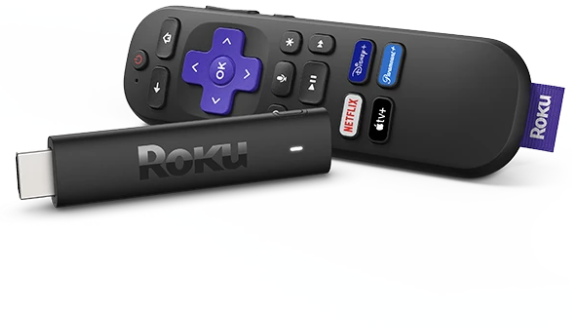
- Roku TVs and Roku Streaming Sticks (Generation 3 or newer) 4k and 4k+ (Recommended)
- Apple TV and devices running iOS 13 or higher
- Android TV
- Fire TV
- Xumo TV
- Android devices running Android 5.0 or higher
- Xbox One
- Xumo Stream Box – 4K
- Chromecast

Roku Devices/TV's
- Be sure the input of the TV is selected for the Roku Device.
- Choose the Spectrum App from the home screen of the Roku menu.
- The Spectrum App will load and bring up Live/Local TV.
- Choose Right Arrow to bring up the TV Guide and then scroll up and down to the channel you would like to choose. Click “OK” to watch the channel.
- Choose Right Arrow two times to bring up the full TV Guide and then scroll up and down to the channel you would like to choose. Click “OK” to watch the channel.
- You can hit the back arrow and it will bring up advanced options like Full Guide and On Demand.

Samsung TV
- Press the Return/Menu button on your Smart remote to view the Spectrum TV main menu.
- Go to Spectrum App and then press the Center Directional Pad.
- Press the Return/Menu button to view the Spectrum TV’s main menu.
- Go to Guide and then press the Center Directional Pad to select.
- Use the arrow buttons to browse titles.
- Press the Center Directional Pad to choose a program.
- Press the Return (right arrow) button on the remote to exit the Guide and return to the Live TV program you were previously watching.

LG TVs
- Connect to Internet: Ensure your LG TV is connected to Wi-Fi or an Ethernet cable.
- Open LG Content Store: Press the Home button on your remote. Navigate and select the LG Content Store or Apps icon (usually a colorful app icon).
- Search for App: Select the magnifying glass (Search) icon at the top of the screen.
- Install App: Type the app name, select it, and click the Install button.
- Launch App: Once installation is complete, select Launch to open the app.
- Log In: You may need to create or log in to your LG account, often done via a QR code.

Vizio TVs
- Open the App Menu: Press the Home button on your remote.
- Navigate to Apps: Select the Apps icon on the left panel.
- Search for Apps: Select App Search to find specific apps.
- Install/Add: Select the desired app, then choose Add to Home or Install.
How To Move Apps
- Highlight the app you want to move.
- Press the star button or yellow button on the remote.
- Select Customize App Row or Move App.
- Use the arrows to move the app and press OK